Install Raion Hub on your iPhone or iPad
Download Raion Hub from the App Store, sign in, and allow notifications so you hear about a new lead the moment it lands. Takes about two minutes.
Before you start. The app needs iOS 15.6 or newer (iPadOS for an iPad). Have your Raion Hub email and password to hand — or the Google, Facebook or Apple account you sign in with. Nothing needs unlocking: the app is free, and it is not part of any plan tier.
Steps
Open Raion Hub in the App Store
On your iPhone or iPad, tap the button below. If you are reading this on a computer, point your iPhone’s camera at the QR code and tap the link that appears.
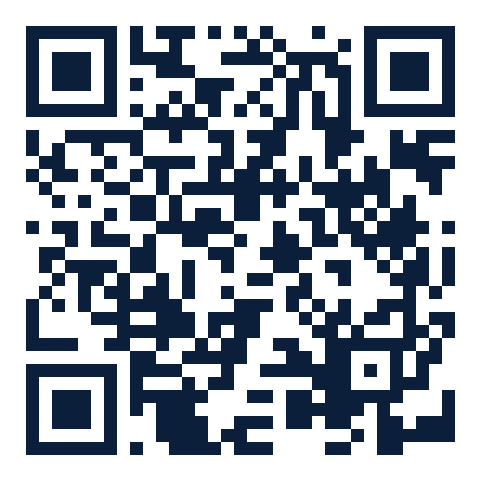
To find it yourself instead, open the App Store, search for Raion Hub, and pick the one published by Raion AI.
Tap Get
The download starts. Your iPhone may ask for Face ID, Touch ID or your Apple Account password first — that is the App Store checking it is you, not Raion Hub. The app is free to download.
Open the app and sign in
Tap Open in the App Store, or the Raion Hub icon on your Home Screen. Sign in with the same email and password you use on the web, or with Continue with Google or Continue with Facebook.
The app also offers Continue with Apple. That button only exists in the iPhone and iPad app, not on the web — so if you sign up with Apple here, sign in with Apple on the web too.
Allow notifications
The first time you sign in, your iPhone asks whether Raion Hub may send you notifications. Tap Allow. That is all it takes — there is no separate switch to turn on in the app.
If you tapped Don’t Allow, open your iPhone’s Settings → Notifications → Raion Hub, and turn on Allow Notifications. Raion Hub cannot ask again by itself.
How Raion Hub behaves on a phone
-
Navigation sits at the bottom. A floating pill holds four slots: Dashboard, a chip showing the database you are in, Alerts and Menu. Press and hold the database chip to switch database.
-
Portrait only. Turn the phone sideways and a full-screen message appears: Rotate your device, with Raion Hub works best in portrait on phones. On Leads, and only there, a View the table button lets you stay sideways for the full table view.
-
Pull down to refresh works on the Leads list.
-
Tapping a notification opens the lead or alert it is about.
-
Your plan is managed on the web. Apple does not allow plan purchases outside its own system, so Settings in the iPhone and iPad app has no Subscription tab. To see or change your plan, open hub.raiontech.io in Safari or on your computer. See Your plan and billing.
See What is different on a phone for the rest.
No App Store? Add it from Safari
Use this only if you cannot install from the App Store — on a managed work iPhone, for example. It puts Raion Hub on your Home Screen from Safari, and it works, but you have to switch push alerts on yourself afterwards.
Open the sign-in screen in Safari
Go to hub.raiontech.io in Safari. If you are already signed in on an iPhone, sign out first: on a phone, the install icon is only on the sign-in screen. On an iPad you can stay signed in and use ? → Add to Home Screen instead.
Tap the download-arrow icon
It sits at the top right of the page, immediately left of the light/dark toggle. On a phone there is no text beside it.
No label at phone width — look for the download arrow left of the light/dark toggle
A panel headed Add Raion Hub to your Home Screen explains the next two taps. The panel is instructions, not an installer — tap Got it to close it.
Two numbered steps and a Got it button — this panel does not install anything
Tap Share, then Add to Home Screen
In Safari’s own toolbar, tap Share, then choose Add to Home Screen. The navy Raion “R” icon lands on your Home Screen, named Raion Hub.
Open it from the Home Screen, sign in, and turn on alerts
Tap the new icon and sign in again — it is separate from Safari. Then tap Alerts in the bottom bar and press Turn on on the Turn on push alerts band. See Turn on push alerts. This needs iOS 16.4 or newer.
In the Home Screen version you can also swipe in from the left edge of the screen to go back.
If something goes wrong
| What happens | Why | What to do |
|---|---|---|
| The App Store says the app needs a newer iOS | Your iPhone is older than iOS 15.6 | Update iOS in Settings → General → Software Update, or use Safari instead |
| No notifications from the app | Don’t Allow was tapped when the iPhone asked | Settings → Notifications → Raion Hub → turn on Allow Notifications |
| The app’s Alerts screen tells you to tap Share and Add to Home Screen | That line is meant for Safari, not for the App Store app | Ignore it. The app’s notifications are controlled in Settings → Notifications → Raion Hub |
| Continue with Apple is missing on the web | Apple sign-in is offered only in the iPhone and iPad app | On the web, sign in with your email and password, Google or Facebook |
| Signed in on the web, signed out in the app | Each device signs in on its own | Sign in again in the app |
| Safari’s panel appeared, you tapped Got it, nothing installed | The panel is instructions only | Tap Share in Safari’s toolbar, then Add to Home Screen |
| Add to Home Screen is not in the Share menu | You may not be in Safari | Open hub.raiontech.io in Safari and try again |
| Pinching does not zoom | Deliberate — the app holds the zoom fixed so the layout stays intact | Use Settings → Accessibility → Zoom on the device |
| Rotate your device fills the screen | Phones are portrait-only outside Leads | Turn the phone upright; on Leads, tap View the table to stay sideways |
Next
- Turn on push alertsGet a notification the moment a lead lands, even when Raion Hub is closed.
- What changes on a phoneRaion Hub on a phone is the same Raion Hub as on a computer — the same data, the
- Install Raion Hub on your computerThere is no Raion Hub download for Windows or Mac — your browser installs it